> For the complete documentation index, see [llms.txt](https://docs.developers.symphony.com/llms.txt). Markdown versions of documentation pages are available by appending `.md` to page URLs; this page is available as [Markdown](https://docs.developers.symphony.com/embedded-modules/universal-webhook/user-guide/example-with-splunk.md).
# Example with Splunk
This page provides a step by step guide on how to create a webhook to receive alerts from Splunk into your Symphony Messaging chats.
### **Symphony** Messaging **setup**
{% hint style="info" %}
We assume here that the Admin has already configured the Universal Webhook app and bot, see the [Installation guide](/embedded-modules/universal-webhook/installation-guide.md) for more details.
{% endhint %}
**Step 1**
Add the Universal Webhook Bot to the chat room where Splunk alerts should be forwarded.
**Step 2**
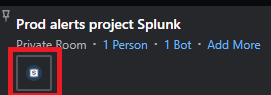
Configure the webhook, by clicking on the Universal Webhook icon in the header of your chat room, then clicking on **Add a webhook.**
Configure the webhook as described below. You may want to adapt the Template to customize it to your needs.
1. Webhook name: `My Splunk alert`
2. Webhook type: `JSON`
3. Template. Set the template as defined below. You may want to adapt the template though, as it assumes for example that the data sent by Splunk will include a `host` property in the results. Contact your Splunk admin to get the list of properties you can get access to.
```xml
Splunk Alert: ${entity["search_name"]}Impacted Host: ${entity["result"].host} Link: Splunk Link
```
4. Set the Security type to `Unauthenticated`. As of today, it appears that Splunk does not support authentication for Webhooks natively. If authentication is required for your workflow, please contact Splunk support to learn more.
5. Click Save and Activate. You can click "Copy" to automatically save the webhook URL in your clipboard.
Your webhook is now successfully configured in Symphony Messaging.
### Splunk setup
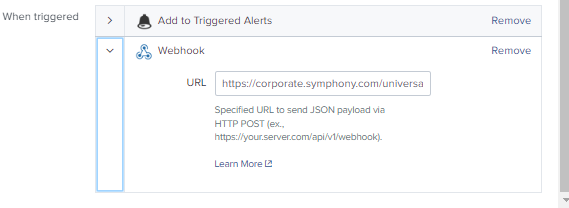
In Splunk, define an alert with a webhook action, and paste the Symphony Messaging webhook URL copied in the previous step.
Finalise the creation of your alert in Splunk.
The configuration of your webhook is completed: Anytime that your alert will be triggered, the Universal Webhook Bot will post a message in your chat room.
---
# Agent Instructions
This documentation is published with GitBook. GitBook is the documentation platform designed so that both humans and AI agents can read, navigate, and reason over technical content effectively. Learn more at gitbook.com.
## Querying This Documentation
If you need additional information that is not directly available in this page, you can query the documentation dynamically by asking a question.
Perform an HTTP GET request on the current page URL with the `ask` query parameter, and the optional `goal` query parameter:
```
GET https://docs.developers.symphony.com/embedded-modules/universal-webhook/user-guide/example-with-splunk.md?ask=&goal=
```
`ask` is the immediate question: it should be specific, self-contained, and written in natural language.
`goal` is optional and describes the broader end goal you are ultimately trying to accomplish on behalf of the user. GitBook uses it to tailor the answer towards what is most useful for that goal.
The response will contain a direct answer to the question and relevant excerpts and sources from the documentation.
Use this mechanism when the answer is not explicitly present in the current page, you need clarification or additional context, or you want to retrieve related documentation sections.